W tym artykule zajmiemy się tabelami w Pythonie, pokażemy najłatwiejszy sposób tworzenia tabeli i manipulowania danymi w niej zawartymi. Korzystając z naszego API, możesz manipulować tabelami i eksportować je do różnych formatów, takich jak Word, Excel, PDF itp.
Przedstawimy Aspose.Words for Python via .NET i skupimy się na tworzeniu oraz wstawianiu tabel przy użyciu tego API.

Aspose.Words for Python via .NET
to biblioteka klas przeznaczona do odczytu i manipulacji dokumentami różnych typów, takich jak Microsoft Word (DOCX, DOC, ODT), Web (Markdown, HTML), PDF i inne. Dzięki tej bibliotece Python możesz tworzyć, edytować, renderować i konwertować pliki Word do wielu formatów, generować raporty oraz wizualizować dane bez potrzeby używania dodatkowego oprogramowania.
Do Twojej dyspozycji jest ponad 100 klas Pythona obsługujących przetwarzanie dokumentów i operacje formatowania danych.
Praca z tabelami w Pythonie
Tabele umożliwiają organizowanie dużych ilości informacji i wyświetlanie ich w strukturze siatki z wierszami i kolumnami. Są bardzo przydatne przy prezentacji danych tabelarycznych, ponieważ zapewniają znacznie lepszą kontrolę nad wyglądem treści.
Tabele to ustrukturyzowane zestawy danych składające się z wierszy i kolumn. Są w pełni obsługiwane w naszej bibliotece, a ich edycja, zmiana, dodawanie i usuwanie jest prosta.
Poniżej pokażemy, jak utworzyć nową tabelę w Pythonie oraz jak w naszej dokumentacji możesz zastosować formatowanie
, pracować ze stylem tabeli
, pracować z kolumnami i wierszami
, oraz scalać i rozdzielać tabele
.
Tworzenie tabel w Pythonie
Nasza biblioteka oferuje różne metody tworzenia nowych tabel w dokumencie; w tym artykule pokażemy, jak skorzystać z niektórych z nich.
Nowo utworzona tabela ma wartości podobne do domyślnych ustawień Microsoft Word.
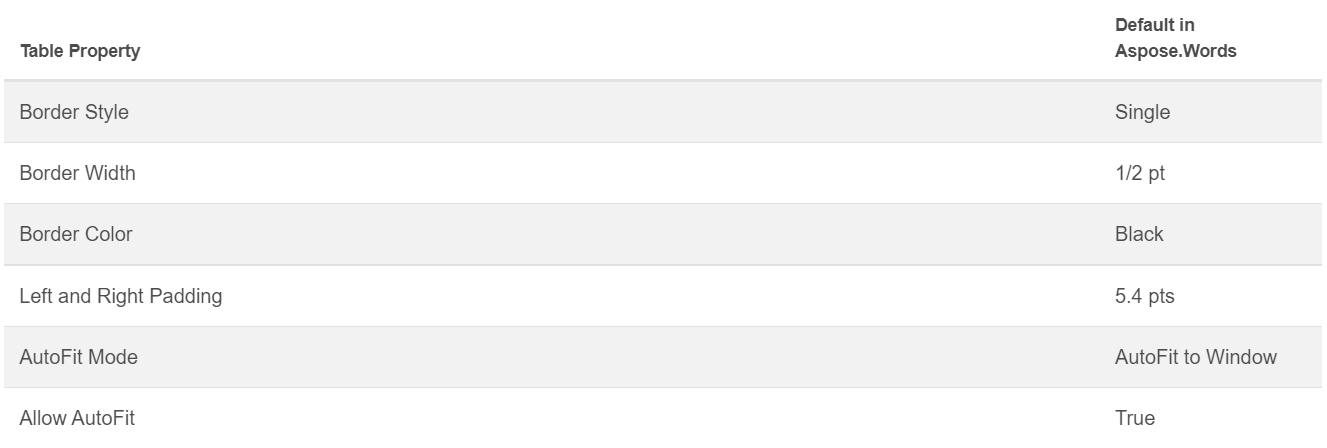
Możesz wstawić tabelę przy użyciu klasy DocumentBuilder
i następujących metod:
• DocumentBuilder.start_table
• DocumentBuilder.insert_cell
• DocumentBuilder.end_row
• DocumentBuilder.end_table
• DocumentBuilder.writeln
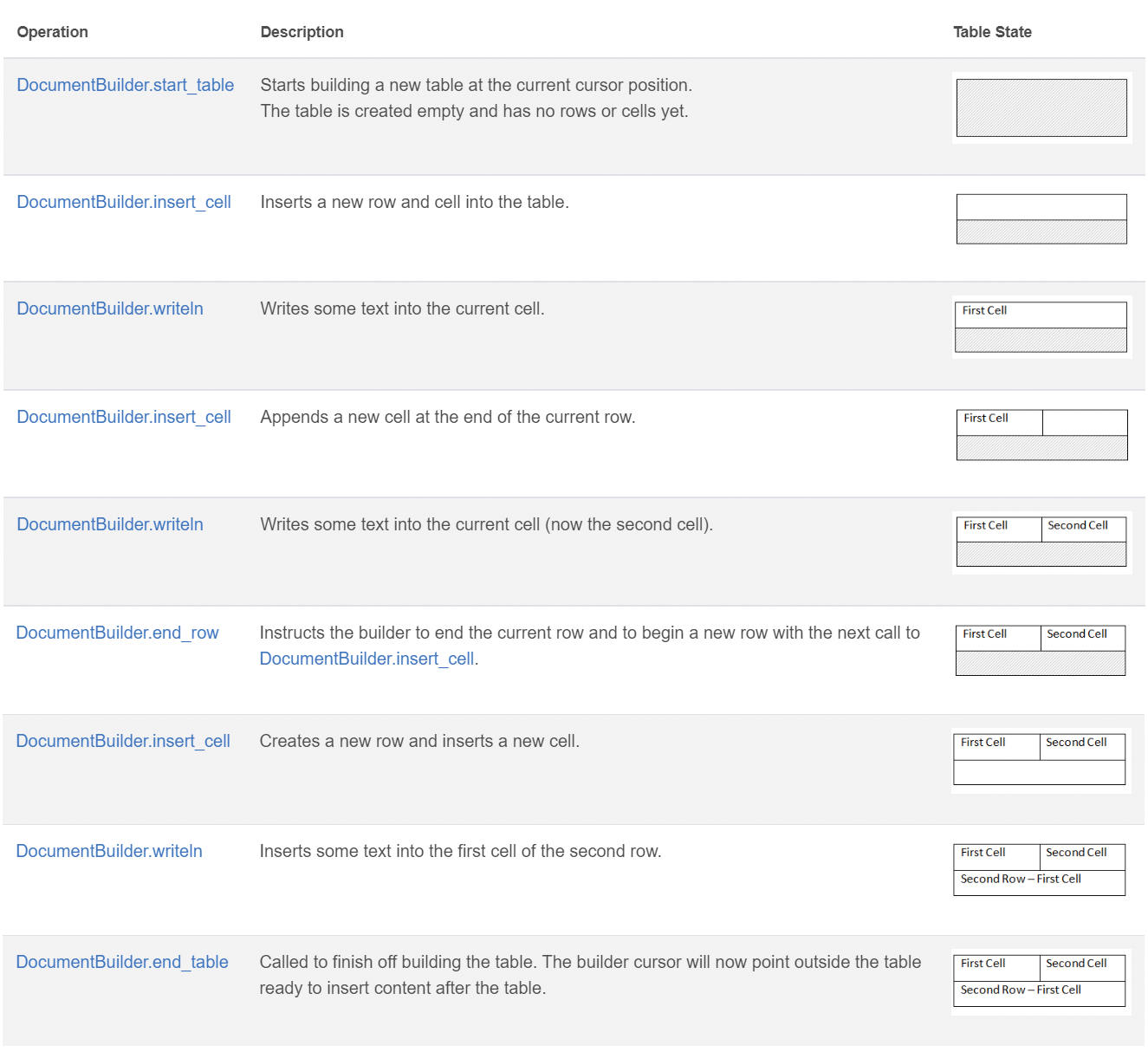
Utwórz tabelę w Pythonie, wykonując te 7 kroków:
- Rozpocznij tabelę metodą DocumentBuilder.start_table.
- Użyj DocumentBuilder.insert_cell, aby wstawić komórkę w tabeli, i skorzystaj z DocumentBuilder.cell_format, aby określić formatowanie komórki.
- Użyj DocumentBuilder, aby wstawić zawartość komórki.
- Powtarzaj kroki 2 i 3, aż ukończysz wiersz.
- Wywołaj metodę DocumentBuilder.end_row, aby zakończyć wiersz, oraz użyj DocumentBuilder.row_format do formatowania wiersza.
- Następnie powtarzaj kroki 2‑5, aż ukończysz całą tabelę.
- Zakończ tabelę metodą DocumentBuilder.end_table.
Więcej szczegółów na temat klasy DocumentBuilder oraz metod tworzenia tabel znajdziesz w naszej dokumentacji
.
W poniższym przykładzie możesz zobaczyć, jak utworzyć prostą tabelę z domyślnym formatowaniem przy użyciu DocumentBuilder.
# For complete examples and data files, please go to https://github.com/aspose-words/Aspose.Words-for-Python-via-.NET
doc = aw.Document()
builder = aw.DocumentBuilder(doc)

# Start building the table.
builder.start_table()
builder.insert_cell()
builder.write("Row 1, Cell 1 Content.")

# Build the second cell.
builder.insert_cell()
builder.write("Row 1, Cell 2 Content.")

# Call the following method to end the row and start a new row.
builder.end_row()

# Build the first cell of the second row.
builder.insert_cell()
builder.write("Row 2, Cell 1 Content")

# Build the second cell.
builder.insert_cell()
builder.write("Row 2, Cell 2 Content.")
builder.end_row()

# Signal that we have finished building the table.
builder.end_table()

doc.save(docs_base.artifacts_dir + "WorkingWithTables.create_simple_table.docx")
Utwórz sformatowaną tabelę przy użyciu DocumentBuilder
– przykład kodu znajduje się poniżej.
# For complete examples and data files, please go to https://github.com/aspose-words/Aspose.Words-for-Python-via-.NET
doc = aw.Document()
builder = aw.DocumentBuilder(doc)

table = builder.start_table()
builder.insert_cell()

# Table wide formatting must be applied after at least one row is present in the table.
table.left_indent = 20.0

# Set height and define the height rule for the header row.
builder.row_format.height = 40.0
builder.row_format.height_rule = aw.HeightRule.AT_LEAST

builder.cell_format.shading.background_pattern_color = drawing.Color.from_argb(198, 217, 241)
builder.paragraph_format.alignment = aw.ParagraphAlignment.CENTER
builder.font.size = 16
builder.font.name = "Arial"
builder.font.bold = True

builder.cell_format.width = 100.0
builder.write("Header Row,\n Cell 1")

# We don't need to specify this cell's width because it's inherited from the previous cell.
builder.insert_cell()
builder.write("Header Row,\n Cell 2")

builder.insert_cell()
builder.cell_format.width = 200.0
builder.write("Header Row,\n Cell 3")
builder.end_row()

builder.cell_format.shading.background_pattern_color = drawing.Color.white
builder.cell_format.width = 100.0
builder.cell_format.vertical_alignment = aw.tables.CellVerticalAlignment.CENTER

# Reset height and define a different height rule for table body.
builder.row_format.height = 30.0
builder.row_format.height_rule = aw.HeightRule.AUTO
builder.insert_cell()

# Reset font formatting.
builder.font.size = 12
builder.font.bold = False

builder.write("Row 1, Cell 1 Content")
builder.insert_cell()
builder.write("Row 1, Cell 2 Content")

builder.insert_cell()
builder.cell_format.width = 200.0
builder.write("Row 1, Cell 3 Content")
builder.end_row()

builder.insert_cell()
builder.cell_format.width = 100.0
builder.write("Row 2, Cell 1 Content")

builder.insert_cell()
builder.write("Row 2, Cell 2 Content")

builder.insert_cell()
builder.cell_format.width = 200.0
builder.write("Row 2, Cell 3 Content.")
builder.end_row()
builder.end_table()

doc.save(docs_base.artifacts_dir + "WorkingWithTables.formatted_table.docx")
Wstawianie istniejącej tabeli
Jeśli w dokumencie już masz tabelę i chcesz dodać jej kopię, aby wprowadzić zmiany, najprostszym sposobem duplikacji tabeli jest użycie metody Table.clone
, która zachowuje całe formatowanie.
W poniższym przykładzie możesz zobaczyć, jak wstawić tabelę; jeśli potrzebujesz pliku szablonu tego przykładu, pobierz go tutaj
.
# For complete examples and data files, please go to https://github.com/aspose-words/Aspose.Words-for-Python-via-.NET
doc = aw.Document(docs_base.my_dir + "Tables.docx")

table = doc.get_child(aw.NodeType.TABLE, 0, True).as_table()

# Clone the table and insert it into the document after the original.
tableClone = table.clone(True).as_table()
table.parent_node.insert_after(tableClone, table)

# Insert an empty paragraph between the two tables,
# or else they will be combined into one upon saving this has to do with document validation.
table.parent_node.insert_after(aw.Paragraph(doc), table)

doc.save(docs_base.artifacts_dir + "WorkingWithTables.clone_complete_table.docx")
Jeśli masz pytania dotyczące tabel, produktów Aspose.Words for Python via .NET i potrzebujesz pomocy od naszych Paid Support developers
, aby wdrożyć nasze API w swoim projekcie, skontaktuj się z nami poprzez contact us
.