במאמר זה נעבוד עם טבלאות ב-Python, ונציג את הדרך הקלה ביותר ליצור טבלה ולנהל את הנתונים שבתוכה. באמצעות ה-API שלנו, ניתן לנהל טבלאות ולייצא אותן לפורמטים שונים, כגון Word, Excel, PDF ועוד.
נציג את Aspose.Words for Python via .NET, ונמקד ביצירת והכנסת טבלאות באמצעות API זה.
Aspose.Words for Python via .NET
היא ספריית מחלקות שנועדה לקרוא ולנהל מסמכים מסוגים רבים כגון Microsoft Word (DOCX, DOC, ODT), אינטרנט (Markdown, HTML), PDF ועוד. עם API זה של Python, ניתן ליצור, לערוך, להציג ולהמיר קבצי Word למגוון פורמטים, ליצור דוחות ולחזות את הנתונים שלך ללא צורך בתוכנה חיצונית.
יותר מ‑100 מחלקות Python לטיפול בעיבוד מסמכים ובפעולות עיצוב נתונים זמינות עבורך.
עבודה עם טבלאות ב-Python
טבלאות מאפשרות לארגן כמויות גדולות של מידע ולהציגו במבנה רשת עם שורות ועמודות. הן שימושיות מאוד כאשר מציגים נתונים בטאבים מכיוון שהן מאפשרות שליטה טובה יותר בעיצוב התוכן.
טבלאות הן קבוצות נתונים מובנות המורכבות משורות ועמודות. הן נתמכות במלואן בספרייה שלנו, וניתן בקלות לערוך, לשנות, להוסיף ולהסיר טבלאות.
להלן נציג כיצד ליצור טבלה חדשה באמצעות Python, ובתיעוד שלנו ניתן לראות כיצד להחיל עיצוב
, לעבוד עם TableStyle
, לעבוד עם עמודות ושורות
, ו-להצטרף ולפצל טבלאות
.
יצירת טבלאות ב-Python
הספרייה שלנו מציעה שיטות שונות ליצירת טבלאות חדשות בתוך מסמך, ובמאמר זה נציג כיצד להשתמש בכמה מהשיטות הללו.
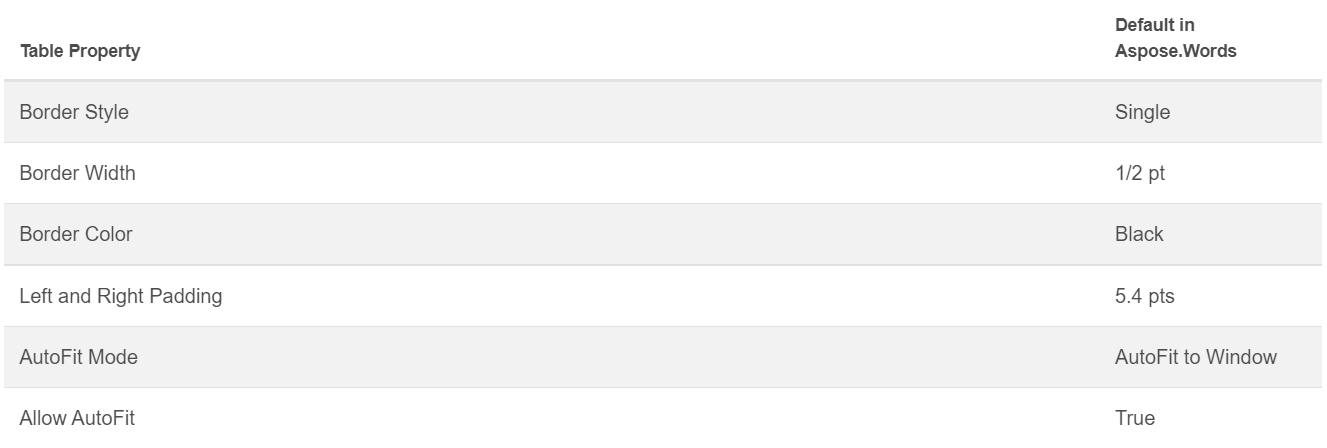
הטבלה שנוצרה מכילה ערכים הדומים לערכי ברירת המחדל של Microsoft Word.
ניתן להכניס טבלה באמצעות מחלקת DocumentBuilder, והשיטות הבאות לבניית הטבלה:
• DocumentBuilder.start_table
• DocumentBuilder.insert_cell
• DocumentBuilder.end_row
• DocumentBuilder.end_table
• DocumentBuilder.writeln
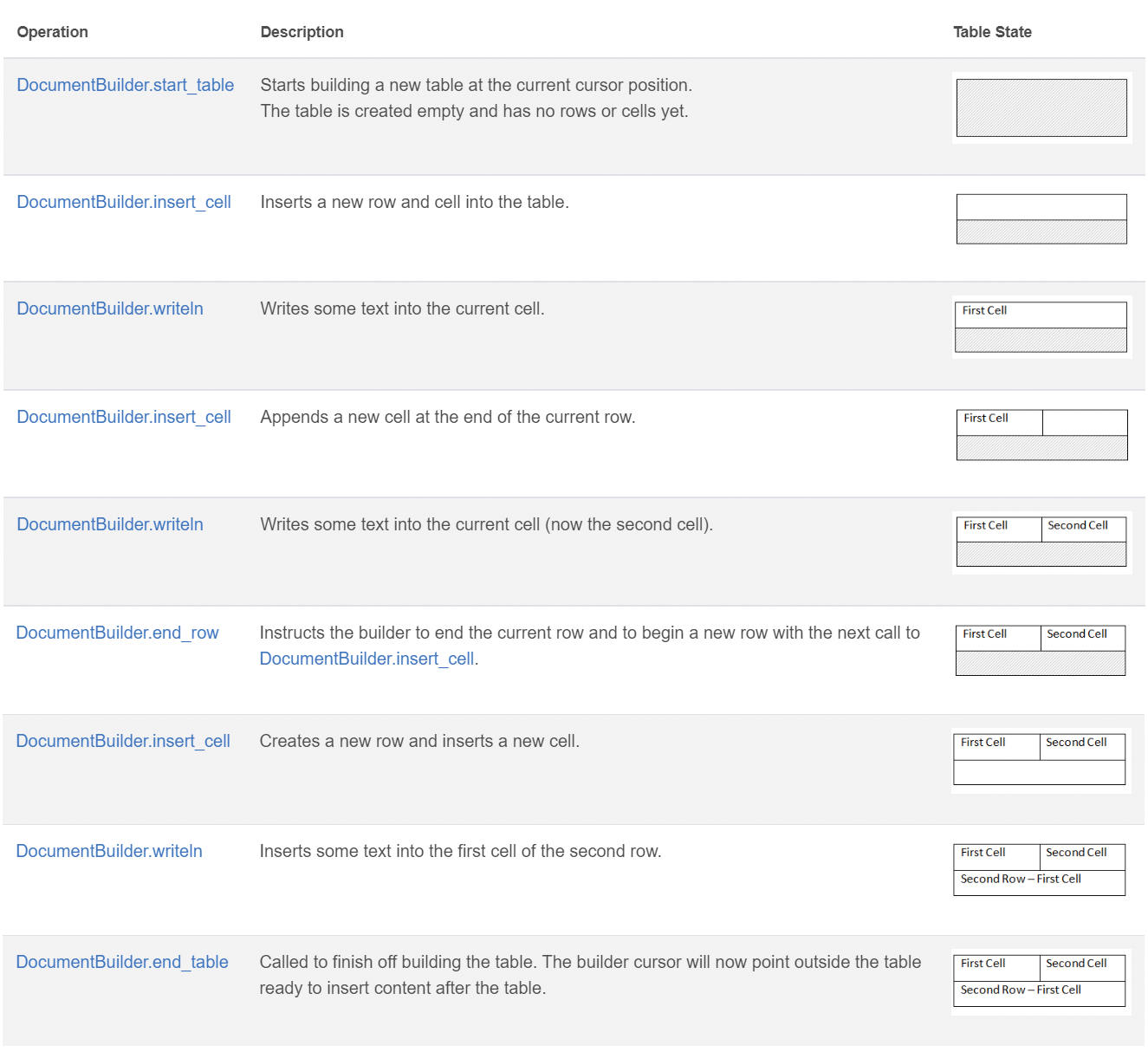
צור טבלה ב-Python באמצעות 7 הצעדים הבאים:
- התחל את הטבלה עם DocumentBuilder.start_table.
- השתמש ב-DocumentBuilder.insert_cell כדי להכניס תא בתוך הטבלה, והשתמש ב-DocumentBuilder.cell_format כדי לציין את עיצוב התא.
- השתמש ב-DocumentBuilder כדי להכניס תוכן לתא.
- חזור על שלבים 2 ו‑3 עד להשלמת השורה.
- ניתן לקרוא לשיטת DocumentBuilder.end_row כדי לסיים את השורה ולהשתמש ב-DocumentBuilder.row_format לעיצוב השורה.
- לאחר מכן, חזור על שלבים 2 עד 5 עד להשלמת הטבלה.
- השתמש בשיטת DocumentBuilder.end_table כדי לסיים את הטבלה.
פרטים נוספים על מחלקת DocumentBuilder ושיטות ליצירת טבלאות מתוארים בתיעוד
.
ב‑דוגמה שלהלן ניתן לראות כיצד ליצור טבלה פשוטה עם עיצוב ברירת מחדל באמצעות DocumentBuilder.
# For complete examples and data files, please go to https://github.com/aspose-words/Aspose.Words-for-Python-via-.NET
doc = aw.Document()
builder = aw.DocumentBuilder(doc)

# Start building the table.
builder.start_table()
builder.insert_cell()
builder.write("Row 1, Cell 1 Content.")

# Build the second cell.
builder.insert_cell()
builder.write("Row 1, Cell 2 Content.")

# Call the following method to end the row and start a new row.
builder.end_row()

# Build the first cell of the second row.
builder.insert_cell()
builder.write("Row 2, Cell 1 Content")

# Build the second cell.
builder.insert_cell()
builder.write("Row 2, Cell 2 Content.")
builder.end_row()

# Signal that we have finished building the table.
builder.end_table()

doc.save(docs_base.artifacts_dir + "WorkingWithTables.create_simple_table.docx")
צור טבלה מעוצבת באמצעות DocumentBuilder עם דוגמת הקוד המוצגת למטה.
# For complete examples and data files, please go to https://github.com/aspose-words/Aspose.Words-for-Python-via-.NET
doc = aw.Document()
builder = aw.DocumentBuilder(doc)

table = builder.start_table()
builder.insert_cell()

# Table wide formatting must be applied after at least one row is present in the table.
table.left_indent = 20.0

# Set height and define the height rule for the header row.
builder.row_format.height = 40.0
builder.row_format.height_rule = aw.HeightRule.AT_LEAST

builder.cell_format.shading.background_pattern_color = drawing.Color.from_argb(198, 217, 241)
builder.paragraph_format.alignment = aw.ParagraphAlignment.CENTER
builder.font.size = 16
builder.font.name = "Arial"
builder.font.bold = True

builder.cell_format.width = 100.0
builder.write("Header Row,\n Cell 1")

# We don't need to specify this cell's width because it's inherited from the previous cell.
builder.insert_cell()
builder.write("Header Row,\n Cell 2")

builder.insert_cell()
builder.cell_format.width = 200.0
builder.write("Header Row,\n Cell 3")
builder.end_row()

builder.cell_format.shading.background_pattern_color = drawing.Color.white
builder.cell_format.width = 100.0
builder.cell_format.vertical_alignment = aw.tables.CellVerticalAlignment.CENTER

# Reset height and define a different height rule for table body.
builder.row_format.height = 30.0
builder.row_format.height_rule = aw.HeightRule.AUTO
builder.insert_cell()

# Reset font formatting.
builder.font.size = 12
builder.font.bold = False

builder.write("Row 1, Cell 1 Content")
builder.insert_cell()
builder.write("Row 1, Cell 2 Content")

builder.insert_cell()
builder.cell_format.width = 200.0
builder.write("Row 1, Cell 3 Content")
builder.end_row()

builder.insert_cell()
builder.cell_format.width = 100.0
builder.write("Row 2, Cell 1 Content")

builder.insert_cell()
builder.write("Row 2, Cell 2 Content")

builder.insert_cell()
builder.cell_format.width = 200.0
builder.write("Row 2, Cell 3 Content.")
builder.end_row()
builder.end_table()

doc.save(docs_base.artifacts_dir + "WorkingWithTables.formatted_table.docx")
הוספת טבלה קיימת
אם כבר יש לך טבלה במסמך וברצונך להוסיף עותק של הטבלה כדי לבצע שינויים, הדרך הקלה ביותר לשכפל טבלה היא להשתמש בשיטת Table.clone כדי לשמור על כל העיצוב.
בדוגמה המוצגת למטה ניתן לראות כיצד להכניס טבלה, ואם אתה זקוק לקובץ התבנית של דוגמה זו, ניתן להוריד אותו מכאן
.
# For complete examples and data files, please go to https://github.com/aspose-words/Aspose.Words-for-Python-via-.NET
doc = aw.Document(docs_base.my_dir + "Tables.docx")

table = doc.get_child(aw.NodeType.TABLE, 0, True).as_table()

# Clone the table and insert it into the document after the original.
tableClone = table.clone(True).as_table()
table.parent_node.insert_after(tableClone, table)

# Insert an empty paragraph between the two tables,
# or else they will be combined into one upon saving this has to do with document validation.
table.parent_node.insert_after(aw.Paragraph(doc), table)

doc.save(docs_base.artifacts_dir + "WorkingWithTables.clone_complete_table.docx")
אם יש לך שאלות לגבי טבלאות, מוצרי Aspose.Words for Python via .NET ואתה זקוק לעזרה מ[mפתחים של תמיכה בתשלום] (https://consulting.aspose.com/
) שלנו כדי ליישם את ה-API בפרויקט שלך, אל תהסס צור קשר
.