در این مقاله با جداول در پایتون کار میکنیم و سادهترین روش برای ایجاد جدول و دستکاری دادههای داخل جدول را به شما نشان میدهیم. با استفاده از API ما میتوانید جداول را دستکاری کرده و به فرمتهای مختلفی مانند Word، Excel، PDF و غیره صادر کنید.
ما Aspose.Words for Python via .NET را معرفی میکنیم و بر ایجاد و درج جداول با استفاده از این API تمرکز میکنیم.

Aspose.Words for Python via .NET
یک کتابخانهٔ کلاسمحور است که برای خواندن و دستکاری اسناد انواع مختلف مانند Microsoft Word (DOCX، DOC، ODT)، وب (Markdown، HTML)، PDF و سایر فرمتها طراحی شده است. با این API پایتون میتوانید فایلهای Word را ایجاد، ویرایش، رندر و به فرمتهای متعدد تبدیل کنید، گزارشها را تولید کنید و دادههای خود را بدون نیاز به نرمافزارهای خارجی به تصویر بکشید.
بیش از ۱۰۰ کلاس پایتون برای پردازش اسناد و عملیات قالببندی دادهها در اختیار شماست.
کار با جداول در پایتون
جداول امکان سازماندهی مقدارهای زیاد اطلاعات و نمایش آنها در ساختاری شبیه به شبکه با ردیفها و ستونها را فراهم میکنند. آنها هنگام نمایش دادههای جدولی بسیار مفید هستند زیرا کنترل بهتری بر طراحی محتوا میدهند.
جداول مجموعههای ساختاریافتهای از دادهها هستند که از ردیفها و ستونها تشکیل شدهاند. این ویژگی بهصورت کامل در کتابخانهٔ ما پشتیبانی میشود و میتوانید به راحتی جداول را ویرایش، تغییر، اضافه و حذف کنید.
در ادامه نحوهٔ ایجاد جدول جدید با پایتون را نشان میدهیم و در مستندات میتوانید نحوهٔ اعمال قالببندی
، کار با TableStyle
، کار با ستونها و ردیفها
، و ادغام و تقسیم جداول
را ببینید.
ایجاد جداول در پایتون
کتابخانهٔ ما روشهای مختلفی برای ایجاد جداول جدید در یک سند ارائه میدهد و در این مقاله برخی از این روشها را بررسی میکنیم.
جدولی که بهتازگی ایجاد میشود مقادیر مشابه مقادیر پیشفرض Microsoft Word دارد.
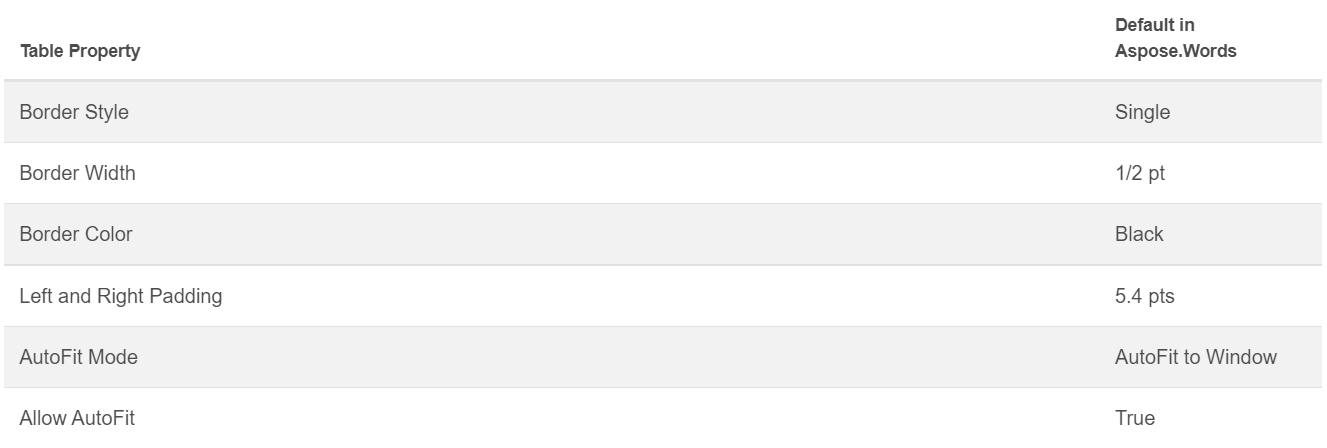
میتوانید با استفاده از کلاس DocumentBuilder
جدول را درج کنید و از روشهای زیر برای ساخت جدول استفاده کنید:
• DocumentBuilder.start_table
• DocumentBuilder.insert_cell
• DocumentBuilder.end_row
• DocumentBuilder.end_table
• DocumentBuilder.writeln
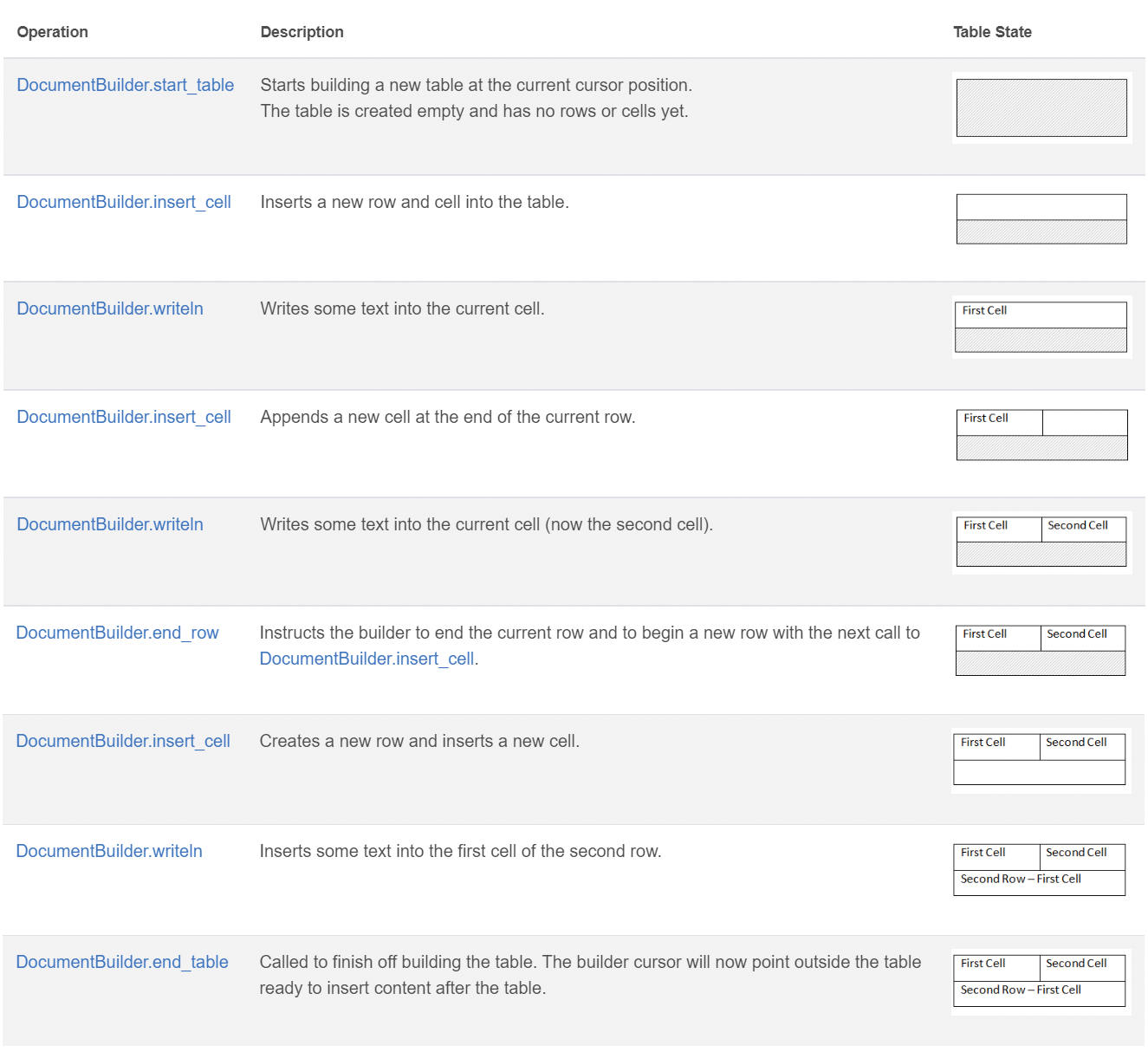
ایجاد جدول در پایتون با این ۷ گام:
- شروع جدول با
DocumentBuilder.start_table.
- استفاده از
DocumentBuilder.insert_cell برای درج یک سلول داخل جدول و استفاده از DocumentBuilder.cell_format برای تعیین قالببندی سلول.
- استفاده از
DocumentBuilder برای درج محتوای سلول.
- تکرار گامهای ۲ و ۳ تا تکمیل ردیف.
- میتوانید متد
DocumentBuilder.end_row را برای پایان ردیف فراخوانی کنید و از DocumentBuilder.row_format برای قالببندی ردیف استفاده کنید.
- پس از آن، گامهای ۲ تا ۵ را تا تکمیل جدول تکرار کنید.
- استفاده از متد
DocumentBuilder.end_table برای پایان جدول.
جزئیات بیشتر دربارهٔ کلاس DocumentBuilder و متدهای ایجاد جدول در مستندات
ما توضیح داده شده است.
در مثال زیر میتوانید ببینید چگونه یک جدول ساده با قالببندی پیشفرض با DocumentBuilder ایجاد میشود.
# For complete examples and data files, please go to https://github.com/aspose-words/Aspose.Words-for-Python-via-.NET
doc = aw.Document()
builder = aw.DocumentBuilder(doc)

# Start building the table.
builder.start_table()
builder.insert_cell()
builder.write("Row 1, Cell 1 Content.")

# Build the second cell.
builder.insert_cell()
builder.write("Row 1, Cell 2 Content.")

# Call the following method to end the row and start a new row.
builder.end_row()

# Build the first cell of the second row.
builder.insert_cell()
builder.write("Row 2, Cell 1 Content")

# Build the second cell.
builder.insert_cell()
builder.write("Row 2, Cell 2 Content.")
builder.end_row()

# Signal that we have finished building the table.
builder.end_table()

doc.save(docs_base.artifacts_dir + "WorkingWithTables.create_simple_table.docx")
ایجاد جدول قالببندیشده با استفاده از DocumentBuilder
در مثال کد زیر.
# For complete examples and data files, please go to https://github.com/aspose-words/Aspose.Words-for-Python-via-.NET
doc = aw.Document()
builder = aw.DocumentBuilder(doc)

table = builder.start_table()
builder.insert_cell()

# Table wide formatting must be applied after at least one row is present in the table.
table.left_indent = 20.0

# Set height and define the height rule for the header row.
builder.row_format.height = 40.0
builder.row_format.height_rule = aw.HeightRule.AT_LEAST

builder.cell_format.shading.background_pattern_color = drawing.Color.from_argb(198, 217, 241)
builder.paragraph_format.alignment = aw.ParagraphAlignment.CENTER
builder.font.size = 16
builder.font.name = "Arial"
builder.font.bold = True

builder.cell_format.width = 100.0
builder.write("Header Row,\n Cell 1")

# We don't need to specify this cell's width because it's inherited from the previous cell.
builder.insert_cell()
builder.write("Header Row,\n Cell 2")

builder.insert_cell()
builder.cell_format.width = 200.0
builder.write("Header Row,\n Cell 3")
builder.end_row()

builder.cell_format.shading.background_pattern_color = drawing.Color.white
builder.cell_format.width = 100.0
builder.cell_format.vertical_alignment = aw.tables.CellVerticalAlignment.CENTER

# Reset height and define a different height rule for table body.
builder.row_format.height = 30.0
builder.row_format.height_rule = aw.HeightRule.AUTO
builder.insert_cell()

# Reset font formatting.
builder.font.size = 12
builder.font.bold = False

builder.write("Row 1, Cell 1 Content")
builder.insert_cell()
builder.write("Row 1, Cell 2 Content")

builder.insert_cell()
builder.cell_format.width = 200.0
builder.write("Row 1, Cell 3 Content")
builder.end_row()

builder.insert_cell()
builder.cell_format.width = 100.0
builder.write("Row 2, Cell 1 Content")

builder.insert_cell()
builder.write("Row 2, Cell 2 Content")

builder.insert_cell()
builder.cell_format.width = 200.0
builder.write("Row 2, Cell 3 Content.")
builder.end_row()
builder.end_table()

doc.save(docs_base.artifacts_dir + "WorkingWithTables.formatted_table.docx")
درج جدول موجود
اگر قبلاً جدول در سند خود دارید و میخواهید یک نسخهٔ آن را برای اعمال تغییرات اضافه کنید، سادهترین راه برای تکثیر جدول استفاده از متد Table.clone
است تا تمام قالببندیها حفظ شوند.
در مثال زیر میتوانید ببینید چگونه یک جدول را درج کنید و اگر به فایل قالب این مثال نیاز دارید، میتوانید آن را از اینجا
دانلود کنید.
# For complete examples and data files, please go to https://github.com/aspose-words/Aspose.Words-for-Python-via-.NET
doc = aw.Document(docs_base.my_dir + "Tables.docx")

table = doc.get_child(aw.NodeType.TABLE, 0, True).as_table()

# Clone the table and insert it into the document after the original.
tableClone = table.clone(True).as_table()
table.parent_node.insert_after(tableClone, table)

# Insert an empty paragraph between the two tables,
# or else they will be combined into one upon saving this has to do with document validation.
table.parent_node.insert_after(aw.Paragraph(doc), table)

doc.save(docs_base.artifacts_dir + "WorkingWithTables.clone_complete_table.docx")
اگر دربارهٔ جداول، محصولات Aspose.Words for Python via .NET سؤال دارید و به کمک توسعهدهندگان پشتیبانی پولی
برای پیادهسازی API در پروژهتان نیاز دارید، لطفاً با ما تماس بگیرید
.