Šajā rakstā mēs strādāsim ar tabulām Pythonā, parādīsim jums visvienkāršāko veidu, kā izveidot tabulu un manipulēt ar datiem tabulā. Izmantojot mūsu API, jūs varat manipulēt ar tabulām un eksportēt tās dažādos formātos, piemēram, Word, Excel, PDF u.c.
Mēs iepazīstināsim ar Aspose.Words for Python via .NET un koncentrēsimies uz tabulu izveidi un ievietošanu, izmantojot šo API.

Aspose.Words for Python via .NET
ir klases bibliotēka, kas paredzēta dokumentu lasīšanai un manipulēšanai dažādos formātos, piemēram, Microsoft Word (DOCX, DOC, ODT), tīmekļa (Markdown, HTML), PDF un citos. Ar šo Python API jūs varat izveidot, rediģēt, renderēt un konvertēt Word failus uz daudziem formātiem, ģenerēt atskaites un vizualizēt datus, nepievienojot ārēju programmatūru.
Jums ir pieejamas vairāk nekā 100 Python klases, kas nodrošina dokumentu apstrādes un datu formatēšanas iespējas.
Darbs ar tabulām Pythonā
Tabulas ļauj sakārtot lielu informācijas apjomu un attēlot to režģveida struktūrā ar rindām un kolonnām. Tās ir ļoti noderīgas, attēlojot tabulārus datus, jo nodrošina daudz labāku satura dizaina kontroli.
Tabulas ir strukturēti datu kopumi, kas sastāv no rindu un kolonnu kopām. Tās ir pilnībā atbalstītas mūsu bibliotēkā, un jūs varat viegli rediģēt, mainīt, pievienot un noņemt tabulas.
Zemāk parādīsim, kā izveidot jaunu tabulu, izmantojot Python, un mūsu dokumentācijā varat apskatīt, kā pielietot formatēšanu
, strādāt ar TableStyle
, strādāt ar kolonnām un rindām
, kā arī apvienot un sadalīt tabulas
.
Tabulu izveide Pythonā
Mūsu bibliotēka piedāvā dažādas metodes jaunu tabulu izveidei dokumentā, un šajā rakstā aplūkosim, kā izmantot dažas no šīm metodēm.
Jaunizveidotajai tabulai ir vērtības, kas līdzīgas Microsoft Word noklusējuma vērtībām.
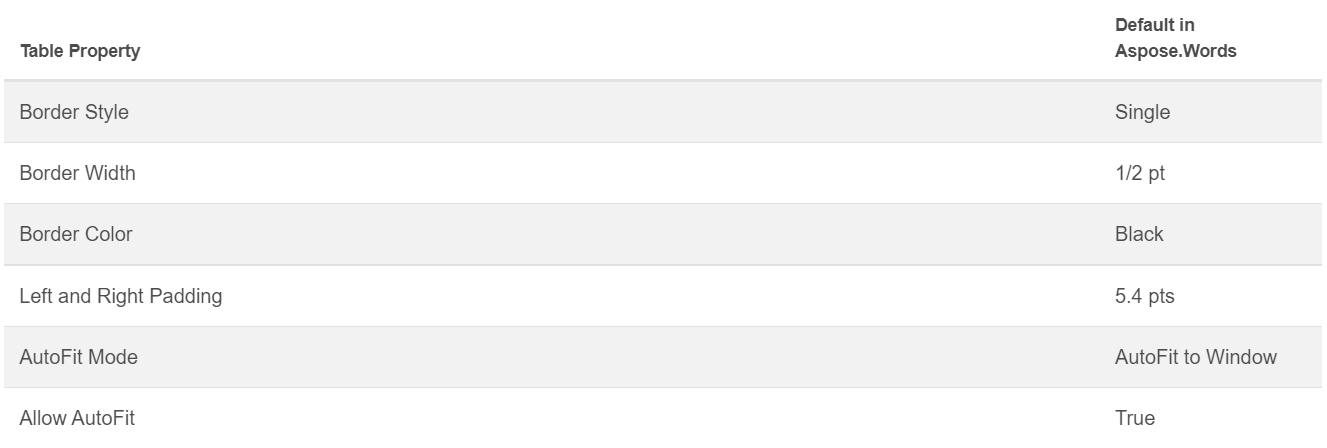
Jūs varat ievietot tabulu, izmantojot DocumentBuilder klasi
, un sekojošās metodes tabulas būvēšanai:
• DocumentBuilder.start_table
• DocumentBuilder.insert_cell
• DocumentBuilder.end_row
• DocumentBuilder.end_table
• DocumentBuilder.writeln
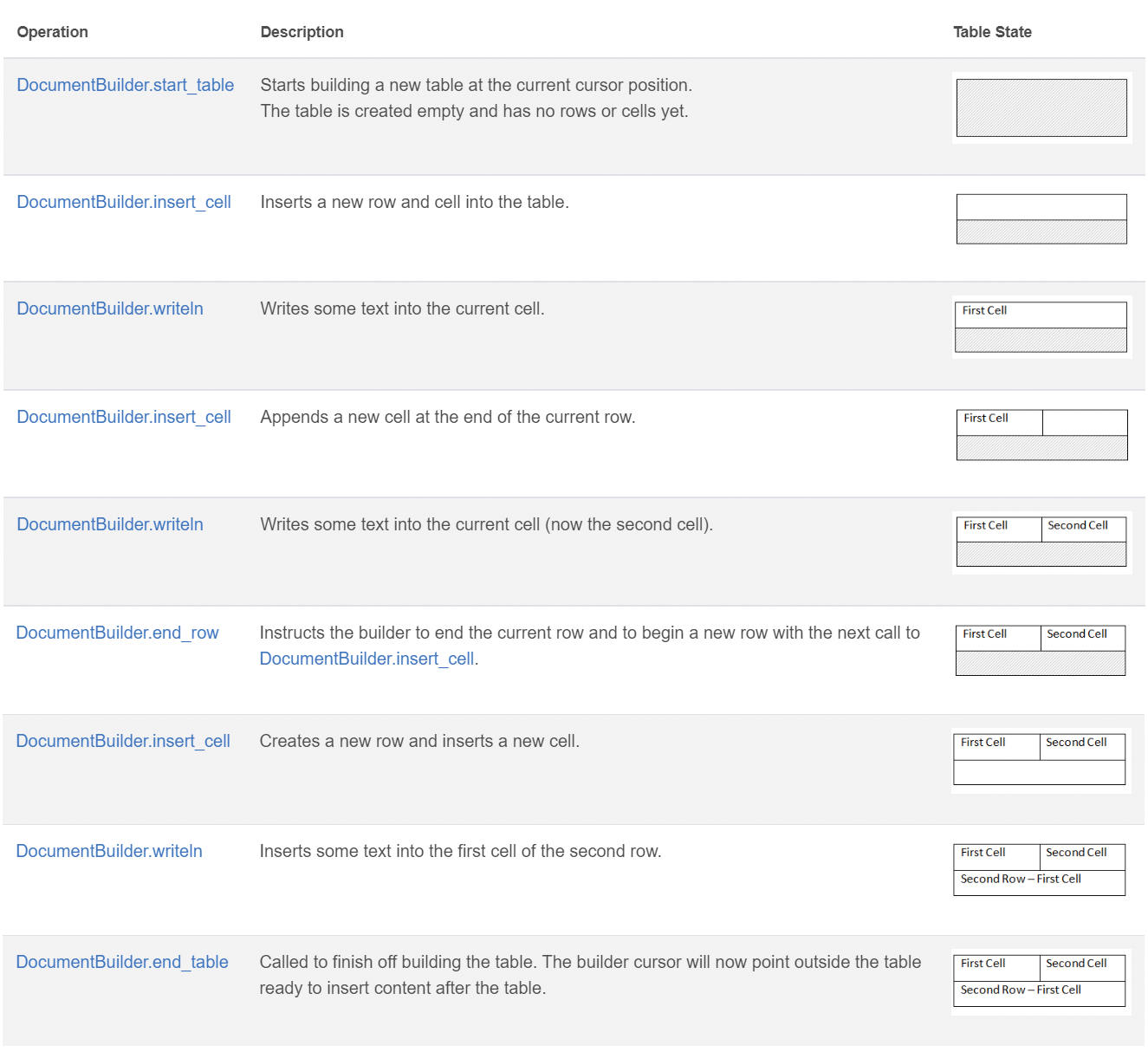
Izveidojiet tabulu Pythonā, izmantojot šos 7 soļus:
- Sāciet tabulu ar
DocumentBuilder.start_table.
- Izmantojiet
DocumentBuilder.insert_cell, lai ievietotu šūnu tabulā, un DocumentBuilder.cell_format, lai noteiktu šūnas formatējumu.
- Izmantojiet
DocumentBuilder, lai ievietotu šūnas saturu.
- Vienkārši atkārtojiet 2. un 3. soli, līdz pabeidzat rindu.
- Varat izsaukt
DocumentBuilder.end_row, lai pabeigtu rindu, un izmantot DocumentBuilder.row_format, lai formatētu rindu.
- Pēc tam atkārtojiet soļus 2–5, līdz pabeidzat visu tabulu.
- Izmantojiet
DocumentBuilder.end_table, lai pabeigtu tabulu.
Vairāk informācijas par DocumentBuilder klasi un metodēm tabulu izveidei ir aprakstīta mūsu dokumentācijā
.
Zemāk redzams vienkāršas tabulas izveides piemērs ar noklusējuma formatējumu, izmantojot DocumentBuilder.
# For complete examples and data files, please go to https://github.com/aspose-words/Aspose.Words-for-Python-via-.NET
doc = aw.Document()
builder = aw.DocumentBuilder(doc)

# Start building the table.
builder.start_table()
builder.insert_cell()
builder.write("Row 1, Cell 1 Content.")

# Build the second cell.
builder.insert_cell()
builder.write("Row 1, Cell 2 Content.")

# Call the following method to end the row and start a new row.
builder.end_row()

# Build the first cell of the second row.
builder.insert_cell()
builder.write("Row 2, Cell 1 Content")

# Build the second cell.
builder.insert_cell()
builder.write("Row 2, Cell 2 Content.")
builder.end_row()

# Signal that we have finished building the table.
builder.end_table()

doc.save(docs_base.artifacts_dir + "WorkingWithTables.create_simple_table.docx")
Izveidojiet formatētu tabulu, izmantojot DocumentBuilder
, ar zemāk redzamo koda piemēru.
# For complete examples and data files, please go to https://github.com/aspose-words/Aspose.Words-for-Python-via-.NET
doc = aw.Document()
builder = aw.DocumentBuilder(doc)

table = builder.start_table()
builder.insert_cell()

# Table wide formatting must be applied after at least one row is present in the table.
table.left_indent = 20.0

# Set height and define the height rule for the header row.
builder.row_format.height = 40.0
builder.row_format.height_rule = aw.HeightRule.AT_LEAST

builder.cell_format.shading.background_pattern_color = drawing.Color.from_argb(198, 217, 241)
builder.paragraph_format.alignment = aw.ParagraphAlignment.CENTER
builder.font.size = 16
builder.font.name = "Arial"
builder.font.bold = True

builder.cell_format.width = 100.0
builder.write("Header Row,\n Cell 1")

# We don't need to specify this cell's width because it's inherited from the previous cell.
builder.insert_cell()
builder.write("Header Row,\n Cell 2")

builder.insert_cell()
builder.cell_format.width = 200.0
builder.write("Header Row,\n Cell 3")
builder.end_row()

builder.cell_format.shading.background_pattern_color = drawing.Color.white
builder.cell_format.width = 100.0
builder.cell_format.vertical_alignment = aw.tables.CellVerticalAlignment.CENTER

# Reset height and define a different height rule for table body.
builder.row_format.height = 30.0
builder.row_format.height_rule = aw.HeightRule.AUTO
builder.insert_cell()

# Reset font formatting.
builder.font.size = 12
builder.font.bold = False

builder.write("Row 1, Cell 1 Content")
builder.insert_cell()
builder.write("Row 1, Cell 2 Content")

builder.insert_cell()
builder.cell_format.width = 200.0
builder.write("Row 1, Cell 3 Content")
builder.end_row()

builder.insert_cell()
builder.cell_format.width = 100.0
builder.write("Row 2, Cell 1 Content")

builder.insert_cell()
builder.write("Row 2, Cell 2 Content")

builder.insert_cell()
builder.cell_format.width = 200.0
builder.write("Row 2, Cell 3 Content.")
builder.end_row()
builder.end_table()

doc.save(docs_base.artifacts_dir + "WorkingWithTables.formatted_table.docx")
Esošas tabulas ievietošana
Ja jūsu dokumentā jau ir tabula un vēlaties pievienot tās kopiju, lai veiktu izmaiņas, vienkāršākais veids, kā dublēt tabulu, ir izmantot Table.clone
metodi, kas saglabā visu formatējumu.
Zemāk redzamajā piemērā parādīts, kā ievietot tabulu, un, ja jums ir nepieciešams šī piemēra veidnes fails, to varat lejupielādēt no šeit
.
# For complete examples and data files, please go to https://github.com/aspose-words/Aspose.Words-for-Python-via-.NET
doc = aw.Document(docs_base.my_dir + "Tables.docx")

table = doc.get_child(aw.NodeType.TABLE, 0, True).as_table()

# Clone the table and insert it into the document after the original.
tableClone = table.clone(True).as_table()
table.parent_node.insert_after(tableClone, table)

# Insert an empty paragraph between the two tables,
# or else they will be combined into one upon saving this has to do with document validation.
table.parent_node.insert_after(aw.Paragraph(doc), table)

doc.save(docs_base.artifacts_dir + "WorkingWithTables.clone_complete_table.docx")
Ja jums ir jautājumi par tabulām, Aspose.Words for Python via .NET produktiem un nepieciešama palīdzība no mūsu Maksas atbalsta izstrādātājiem
, lai īstenotu API jūsu projektā, droši sazinieties ar mums
.